
Accessible Web Design: Complete Guide to Building Inclusive Websites
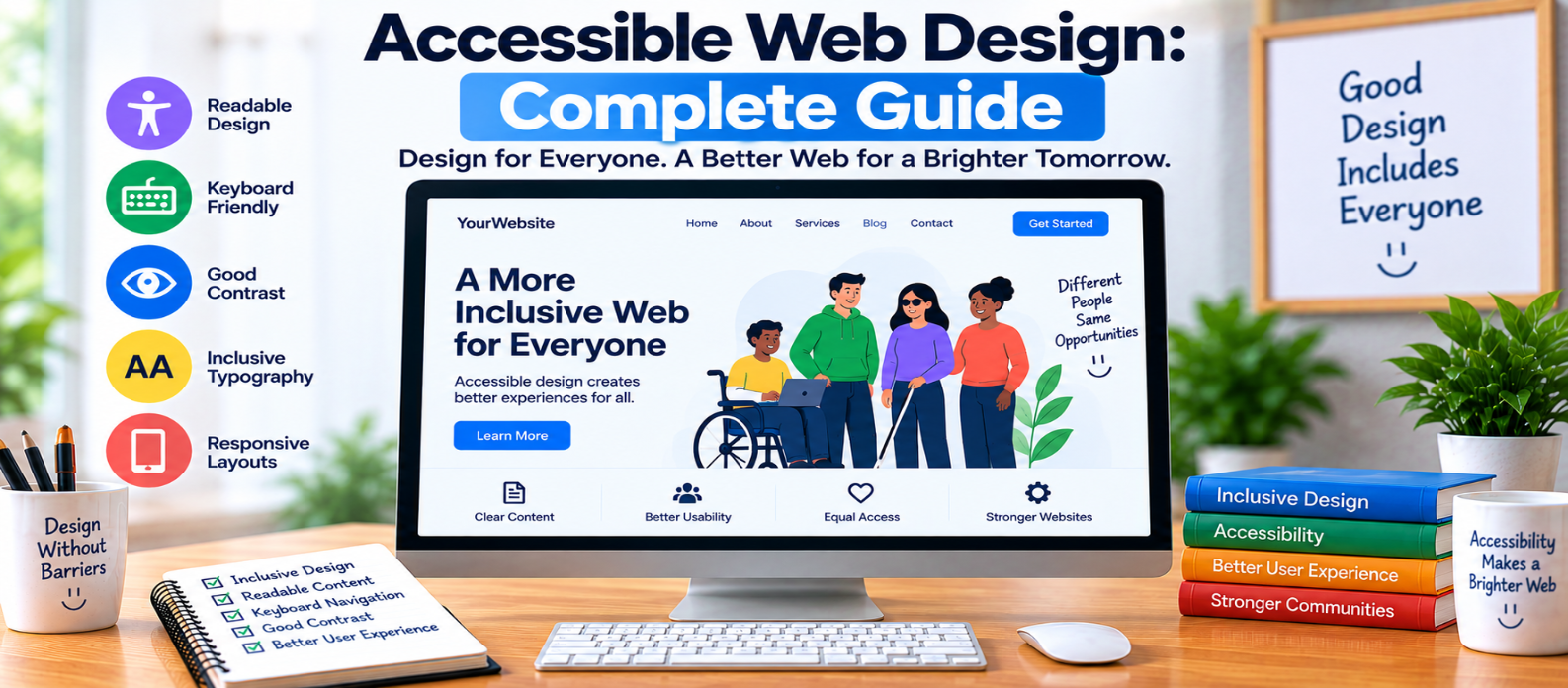
"Learn how to create accessible web designs with readable typography, sufficient color contrast, clear visual hierarchy, visible keyboard focus, usable controls, accessible forms, responsive layouts, thoughtful motion, and inclusive design systems."
Accessible Web Design: Complete Guide
Accessible web design starts before a developer writes the final code.
Choices about colors, typography, spacing, navigation, forms, buttons, animation, and responsive layouts can either remove barriers or create them.
A beautiful interface isn't truly successful if some visitors struggle to read it, understand it, or operate it.
The goal of accessible design is straightforward: create interfaces that more people can perceive, understand, navigate, and use successfully.
Here's how to put that idea into practice.
1. Design for Different Ways of Using the Web
Don't design around one imaginary “average user.”
Someone may:
- Navigate with a keyboard
- Magnify the screen
- Use a screen reader
- Have difficulty distinguishing colors
- Use voice controls
- Need captions
- Have limited fine-motor control
- Browse on a very small display
Accessibility becomes easier when these possibilities are considered during design rather than after launch.
2. Make Text Comfortable to Read
Typography affects accessibility on nearly every page.
Prioritize:
- Readable font sizes
- Clear typefaces
- Comfortable line spacing
- Sensible line lengths
- Distinct headings
- Adequate spacing between sections
Avoid making essential information tiny simply to fit more content above the fold.
Also test whether the layout remains usable when text is enlarged.
A design shouldn't collapse because the user needs larger text.
3. Maintain Sufficient Color Contrast
Text needs enough contrast against its background to remain readable.
This combination may look stylish:
Very light gray text
        +
White background
but can be difficult to read.
Contrast also matters for interface elements such as:
- Buttons
- Form boundaries
- Icons
- Focus indicators
- Charts
- Navigation states
Check contrast during the design stage instead of waiting until development is complete.
4. Never Depend on Color Alone
Imagine a dashboard displaying:
Green dot = Online
Red dot   = Offline
Color alone carries the meaning.
A stronger design might use:
● Online
× Offline
Now text and shape reinforce the status.
The same principle applies to errors, charts, required fields, warnings, and success messages.
5. Create Clear Visual Hierarchy
Visitors should quickly understand:
- What page they're on
- What is most important
- Which sections belong together
- What actions are available
- Where to go next
Use headings, spacing, alignment, size, and grouping consistently.
For example:
Page Title
│
├── Introduction
│
├── Main Section
│    ├── Supporting Information
│    └── Primary Action
│
└── Related Resources
A strong hierarchy benefits people using assistive technology when the visual structure is also represented properly in the underlying HTML.
6. Make Interactive Elements Obvious
Users shouldn't have to guess whether something is clickable.
Buttons should look like controls. Links should be recognizable. Form fields should look editable.
Avoid interfaces where clickable and non-clickable text look almost identical.
Also distinguish important states:
Default
Hover
Focus
Active
Disabled
Error
Success
Don't design only the default and hover states.
Keyboard users, in particular, need a clearly visible focus state.
7. Design Visible Keyboard Focus
A mouse pointer shows where a mouse user is interacting.
Keyboard users need an equivalent visual cue.
When someone presses Tab, the focused element should be obvious.
A focus indicator could use:
- An outline
- A border
- A background change
- Another clearly visible treatment
Avoid removing browser focus styles without providing an accessible replacement.
The test is simple:
Can you immediately tell where keyboard focus is?
8. Give Controls Enough Space
Small interactive targets can be difficult to activate, particularly on touchscreens or for people with limited motor precision.
Be especially careful with:
- Tiny close buttons
- Small menu icons
- Closely packed links
- Checkbox controls
- Pagination
- Icon-only actions
Provide sufficient target size and spacing so users don't need extreme precision.
The visible icon doesn't necessarily need to occupy the entire clickable area.
9. Design Better Forms
Forms often create accessibility barriers because they combine instructions, input, validation, and interaction.
A good form design includes:
Clear Label
    ↓
Input
    ↓
Helpful Instruction
    ↓
Specific Error Message
Don't rely on placeholder text as the only label.
Instead of:
Errorwrite something actionable:
Password must contain at least 8 characters.Place errors where users can easily associate them with the relevant field.
10. Make Navigation Predictable
Visitors shouldn't have to relearn your interface on every page.
Keep important navigation patterns reasonably consistent.
For example:
Logo → Home
Main Navigation
Search
Account
Primary Content
Footer
Consistency can reduce cognitive effort and make websites easier to learn.
On mobile, make sure menus can be opened, navigated, and closed without unnecessary difficulty.
11. Design Responsive Layouts for Accessibility
Responsive design isn't only about making everything fit on a smaller screen.
Check whether users can still:
- Read the text
- Understand the hierarchy
- Reach important actions
- Use forms
- Navigate menus
- Interpret tables
- Operate interactive tools
Test narrow screens and high zoom levels.
Avoid layouts that force unnecessary horizontal scrolling for ordinary page content.
12. Use Motion With Purpose
Animation can explain transitions and provide useful feedback, but movement shouldn't dominate the interface.
Be cautious with:
- Auto-playing carousels
- Large parallax effects
- Continuous animations
- Rapid flashing
- Moving backgrounds
Consider users who prefer reduced motion.
Ask whether each animation helps someone understand the interface. If it exists only as decoration, consider whether it is worth the potential distraction.
13. Make Icon-Only Controls Understandable
An icon that seems obvious to a designer may not be obvious to everyone.
Common symbols can still require accessible names.
For example, a magnifying-glass button should communicate that its function is Search, not simply display an unexplained icon.
When space permits, pairing icons with text can improve clarity.
14. Build Accessibility Into the Design System
If your website uses reusable components, accessibility shouldn't be solved separately on every page.
Define accessible patterns for:
Buttons
Forms
Links
Navigation
Dialogs
Alerts
Cards
Tabs
Tables
Tooltips
Document states such as focus, error, disabled, selected, and expanded.
Fixing accessibility at the component level can improve many pages at once.
Accessible Web Design Checklist
Before approving a design, check:
-
Text is easy to read
-
Color contrast is sufficient
-
Meaning doesn't depend on color alone
-
Visual hierarchy is clear
-
Links and buttons are recognizable
-
Keyboard focus is visible
-
Interactive targets are comfortably usable
-
Form labels remain visible
-
Errors explain how to correct problems
-
Navigation is predictable
-
Mobile layouts remain usable
-
Zoomed content works properly
-
Motion isn't excessive
-
Icons have understandable purposes
-
Reusable components include accessible states
Conclusion
Accessible web design isn't about creating a separate interface for people with disabilities.
It means making better decisions in the interface everyone uses.
Think of accessibility throughout the design process:
Typography
    ↓
Color & Contrast
    ↓
Layout & Hierarchy
    ↓
Controls & Focus
    ↓
Forms & Navigation
    ↓
Responsive Design
    ↓
Testing & Refinement
Don't wait until a website is finished to ask whether people can use it.
Include accessibility when choosing colors, creating components, designing interactions, planning responsive layouts, and reviewing prototypes.
The best accessible design often feels simple: people can see what matters, understand what to do, and complete their task without unnecessary barriers.
Get a Free Access To 200+ Free Tools:
|
Home Page |
|
|
Calculator Tools |
|
|
Text & Converter Tools |
|
|
PDF & Image Tools |
|
|
Games & Developer Tools |
|
|
Resume Builder |