
Dark Mode Web Design: Complete Guide to Better Dark Interfaces
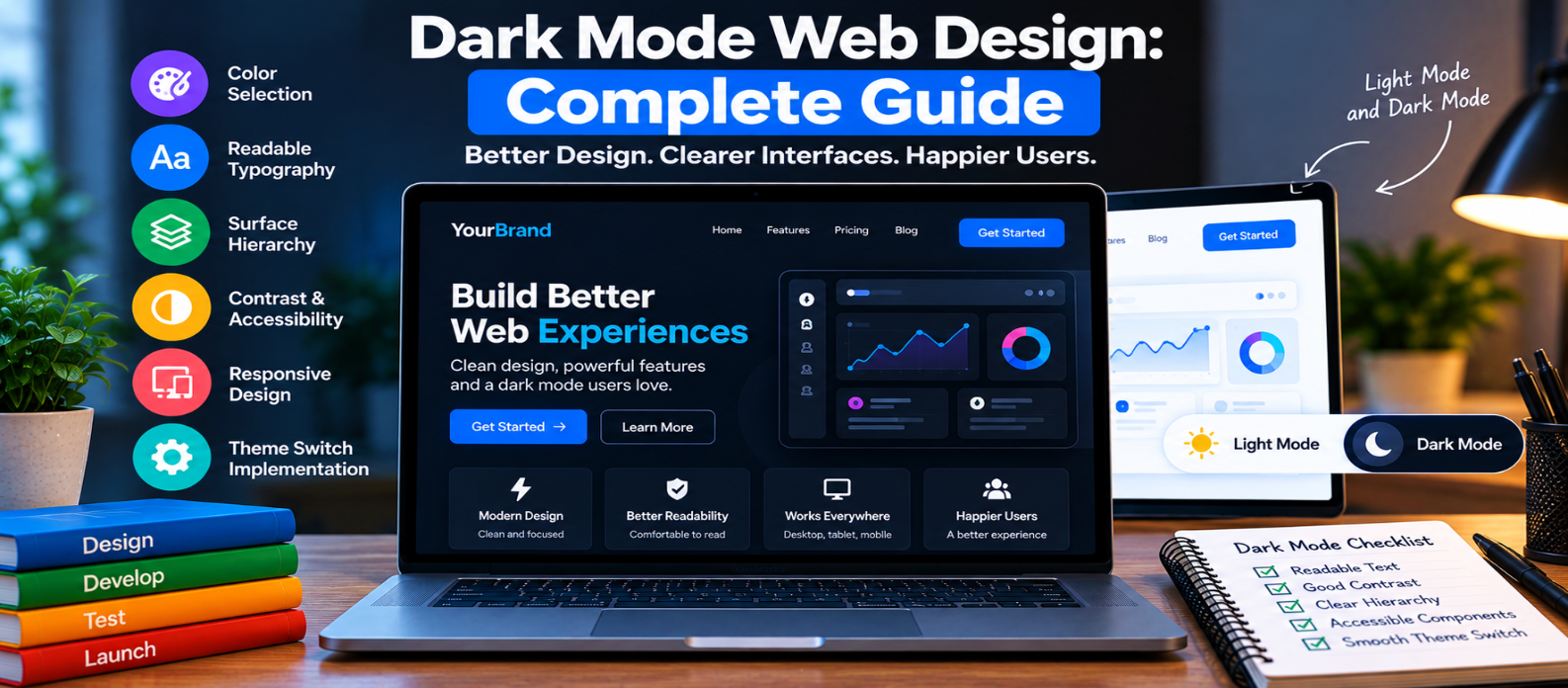
"Learn how to design better dark-mode websites with readable typography, accessible contrast, clear surface hierarchy, balanced accent colors, dark-friendly forms and images, system theme preferences, CSS variables, and practical testing techniques."
Dark Mode Web Design: Complete Guide
Dark mode has become a familiar option across websites, apps, operating systems, and developer tools.
But creating a good dark interface involves more than changing a white background to black and making the text white.
Colors behave differently against dark surfaces. Shadows become less noticeable, bright colors can feel more intense, images may clash with their surroundings, and poor contrast decisions can make content uncomfortable to read.
A successful dark theme needs to be designed as a complete visual system.
1. Don't Simply Invert the Light Theme
Automatic color inversion may produce unexpected results.
Consider a light interface:
Background: White
Surface: Light Gray
Text: Near Black
Border: Gray
A dark version needs its own relationships:
Background: Very Dark
Surface: Slightly Lighter
Text: Light
Border: Subtle Light/Dark Contrast
Treat dark mode as a theme rather than a filter.
2. Avoid Pure Black Everywhere
#000000 can work in some designs, but you don't need to use it for every background.
Slightly lighter dark tones can help create visual layers.
For example:
Page Background
      ↓
Card Surface
      ↓
Elevated Surface
      ↓
Interactive Element
Small differences between surfaces can establish hierarchy without heavy borders.
The exact colors should depend on your design system and contrast requirements.
3. Be Careful With Pure White Text
Large areas of maximum-brightness white text on very dark backgrounds can feel visually intense.
A dark design may use different text levels:
Primary Text
Secondary Text
Muted Text
Disabled Text
Each still needs sufficient readability.
Don't make secondary text so dim that visitors struggle to read it.
4. Build Surface Hierarchy
Light interfaces often use shadows to show that one element sits above another.
Shadows are less obvious on dark backgrounds.
You can create separation using:
- Different surface tones
- Subtle borders
- Highlights
- Controlled shadows
- Spacing
For example:
Dark Page
   ↓
Lighter Card
   ↓
Highlighted Dialog
The difference doesn't need to be dramatic. It only needs to make relationships understandable.
5. Adjust Accent Colors for Dark Backgrounds
A bright blue that looks balanced on white may appear extremely vivid on a dark background.
Don't assume the exact same accent palette works equally well in both themes.
Review:
- Primary buttons
- Links
- Icons
- Charts
- Status colors
- Focus indicators
- Selected states
Adjust lightness or saturation where necessary while maintaining a consistent visual identity.
6. Maintain Accessible Contrast
Dark mode doesn't automatically improve accessibility.
You still need readable contrast between:
- Text and backgrounds
- Buttons and labels
- Form controls
- Links
- Borders where important
- Focus indicators
- Status messages
Also avoid relying only on color to communicate meaning.
For example:
✓ Upload complete
✕ Upload failed
is clearer than two differently colored dots with no labels.
7. Design Forms Specifically for Dark Mode
Forms can reveal weaknesses in a dark theme quickly.
Check:
Input Background
Border
Label
Placeholder
Entered Text
Focus State
Error State
Disabled State
A field needs enough visual separation from the surrounding surface to look interactive.
Don't make placeholder text the only field label, and don't make borders so subtle that inputs disappear.
8. Handle Images and Illustrations Carefully
An image designed for a white page may look like a bright rectangle when placed inside a dark interface.
Review:
- Transparent graphics
- Screenshots
- Illustrations
- Logos
- Charts
- Diagrams
When appropriate, create theme-aware visual assets.
However, don't automatically invert photographs or brand imagery. That can distort their appearance.
9. Make Charts Readable in Both Themes
Dashboards require extra attention because several colors may appear together.
Check whether:
- Grid lines remain visible
- Labels are readable
- Data series are distinguishable
- Tooltips match the theme
- Selected states remain obvious
Don't rely entirely on colors to distinguish important data. Labels, shapes, patterns, or other cues may help where appropriate.
10. Support the User's Theme Preference
Browsers and operating systems can communicate whether a user prefers a light or dark appearance.
CSS can respond using:
@media (prefers-color-scheme: dark) {
  body {
    background: #121212;
    color: #f2f2f2;
  }
}
This can provide a useful default.
If your website also offers a manual theme switch, consider preserving the user's chosen preference rather than unexpectedly resetting it on every visit.
11. Use CSS Variables for Theme Management
Instead of repeating colors throughout your stylesheet, define semantic variables.
For example:
:root {
  --background: #ffffff;
  --surface: #f5f5f5;
  --text: #161616;
}

[data-theme="dark"] {
  --background: #121212;
  --surface: #1e1e1e;
  --text: #f2f2f2;
}
Components can then use:
body {
  background: var(--background);
  color: var(--text);
}
This makes theme changes easier to maintain consistently.
12. Test More Than the Homepage
Dark mode often looks perfect on the first screen and breaks elsewhere.
Test:
- Blog articles
- Navigation
- Forms
- Tables
- Code blocks
- Modals
- Dropdowns
- Tooltips
- Empty states
- Error pages
- Search results
- Interactive tools
Look for hard-coded colors that ignore the active theme.
13. Don't Force Dark Mode on Everyone
Some people prefer dark interfaces. Others prefer light ones.
Preferences can depend on environment, device, visual needs, or simply personal comfort.
When both themes are practical for your product, giving users control can provide a better experience than assuming one theme is universally superior.
Dark Mode Design Checklist
Before launching, check:
-
Dark mode is designed rather than automatically inverted
-
Surface hierarchy is clear
-
Text remains comfortable to read
-
Contrast is sufficient
-
Accent colors work on dark backgrounds
-
Buttons and links remain recognizable
-
Focus states are visible
-
Forms are easy to understand
-
Images work with the theme
-
Charts remain readable
-
System theme preference is considered
-
Manual preference can be preserved when appropriate
-
Reusable theme variables are used
-
All major page types have been tested
Conclusion
Good dark mode design is a system:
Dark Background
      ↓
Surface Hierarchy
      ↓
Readable Typography
      ↓
Balanced Accent Colors
      ↓
Accessible Components
      ↓
Theme-Aware Content
      ↓
User Preference
Don't build dark mode by simply replacing white with black.
Design how surfaces relate, how text reads, how colors behave, how controls communicate their states, and how the experience works across the entire website.
The best dark mode doesn't merely make a website darker. It preserves clarity, usability, accessibility, and visual hierarchy in a different viewing environment.
Get a Free Access To 200+ Free Tools:
|
Home Page |
|
|
Calculator Tools |
|
|
Text & Converter Tools |
|
|
PDF & Image Tools |
|
|
Games & Developer Tools |
|
|
Resume Builder |