
How to Make a Website Accessible to Everyone: Practical Guide
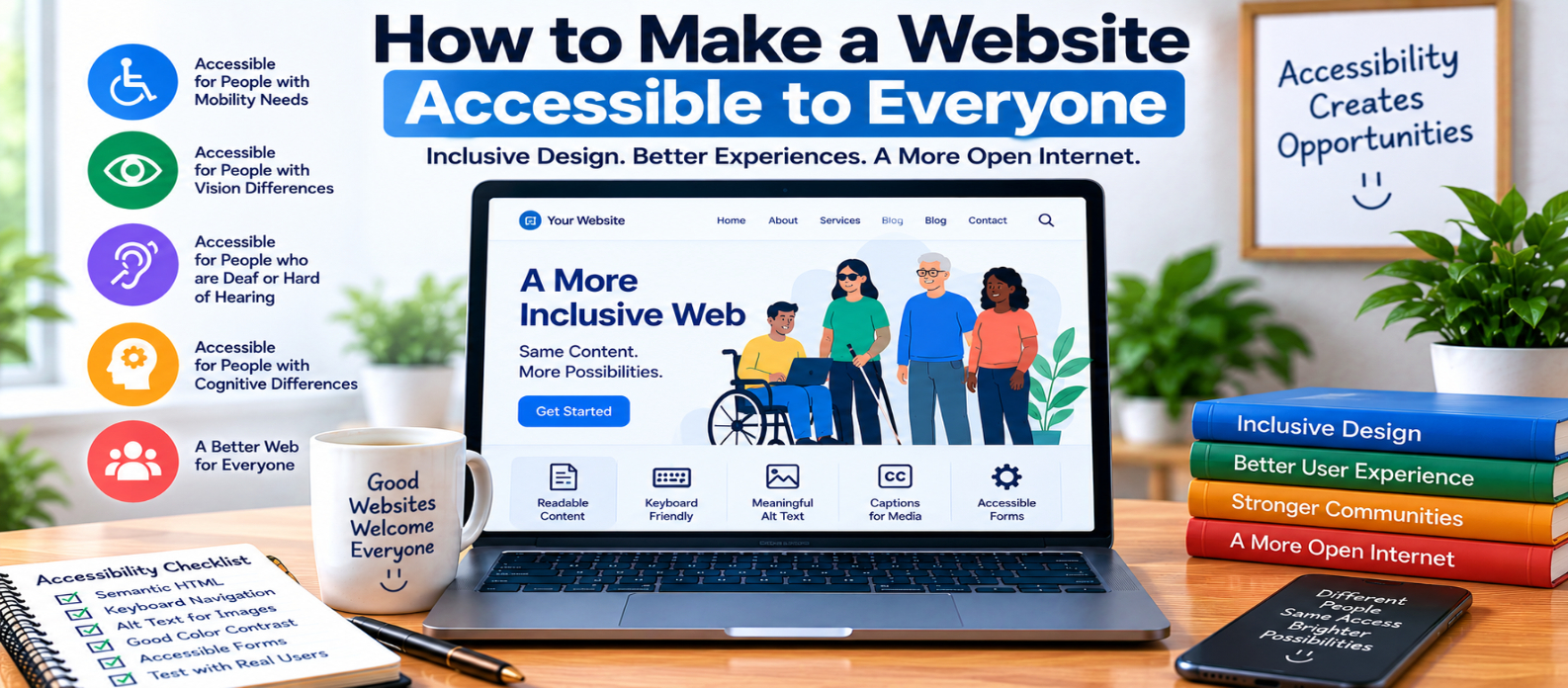
"Learn how to make a website accessible to more people with semantic HTML, keyboard navigation, alt text, readable content, accessible forms, meaningful links, captions, reduced motion, accessible components, and practical testing techniques."
How to Make a Website Accessible to Everyone
A website shouldn't require perfect eyesight, precise mouse control, excellent hearing, or a particular way of interacting with technology.
People browse websites using keyboards, screen readers, voice controls, magnification, touch devices, captions, and other assistive technologies. Others may experience temporary limitations, such as a broken arm, poor lighting, or difficulty hearing audio in a noisy environment.
Making a website accessible means removing unnecessary barriers so more people can successfully read, navigate, understand, and interact with it.
Here's a practical way to improve an existing website.
1. Start With Proper HTML
Accessibility often begins before any special accessibility code is needed.
Use HTML elements according to their purpose:
<header>
<nav>
<main>
<article>
<footer>
For interactive controls, prefer native elements:
<button type="button">Download File</button>rather than making a generic element behave like a button.
Native HTML provides browsers and assistive technologies with useful information about the page.
2. Make the Website Work Without a Mouse
Put the mouse aside and press Tab.
Try to:
- Open navigation
- Follow links
- Activate buttons
- Complete forms
- Use interactive tools
- Close dialogs
You should also be able to see which element currently has keyboard focus.
For example:
button:focus-visible,
a:focus-visible {
  outline: 3px solid currentColor;
  outline-offset: 3px;
}
Don't remove focus indicators just to make the interface look cleaner.
3. Give Images Appropriate Alternative Text
If an image communicates useful information, provide a meaningful text alternative.
For example:
<img
  src="checkout-error.png"
  alt="Checkout page showing an invalid card number error"
>
Avoid automatically filling alt attributes with filenames such as:
IMG_4528.jpgDecorative images that communicate nothing important can usually have empty alt text:
alt=""Think about what someone would miss if they couldn't see the image.
4. Improve Text Readability
Accessibility isn't only about assistive technology.
Content itself needs to be comfortable to read.
Use:
- Readable font sizes
- Adequate line spacing
- Clear paragraphs
- Descriptive headings
- Strong text/background contrast
- Simple language where appropriate
Avoid huge walls of text.
Also test what happens when the browser is zoomed significantly. Important information and controls shouldn't become unusable merely because the content is enlarged.
5. Don't Communicate Meaning With Color Alone
Imagine a form where invalid fields become red but nothing else changes.
Someone who can't easily distinguish that color may not know which fields contain errors.
Instead, combine visual styling with text:
✕ Password must contain at least 8 characters.

✓ Password accepted.
The same principle applies to charts, status indicators, alerts, and dashboards.
Color can reinforce meaning. It shouldn't be the only source of meaning.
6. Organize Headings Properly
A clear heading structure helps everyone scan the page and can make navigation easier for assistive-technology users.
For example:
H1: Image Optimization Guide

   H2: Choose an Image Format

   H2: Compress Your Images

      H3: Lossy Compression

      H3: Lossless Compression

   H2: Test Performance
Don't select H3 merely because its default appearance happens to match the font size you want.
Use CSS for styling and heading levels for structure.
7. Make Forms Easier to Complete
A placeholder isn't a reliable replacement for a proper form label.
Prefer:
<label for="name">Full name</label>
<input id="name" name="name" type="text">
When something goes wrong, explain how to correct it.
Weak error:
Invalid value.Useful error:
Enter a phone number using 10 digits.If a form asks for information in a particular format, explain the requirement before users repeatedly fail validation.
8. Make Links Understandable
A page containing ten links labeled “click here” can be difficult to understand out of context.
Instead of:
Click hereuse something descriptive:
View the website accessibility checklistLink text should help users understand its destination or purpose.
9. Make Audio and Video Accessible
If important information is spoken in a video, people who cannot hear the audio need another way to access it.
Depending on the media, accessibility features can include:
- Accurate captions
- Transcripts
- Accessible media controls
- Audio descriptions when important visual information requires them
Review automatically generated captions when accuracy matters. Technical terms and names are particularly easy for automatic transcription to misunderstand.
10. Avoid Unnecessary Motion and Flashing
Animation can support an interface, but excessive movement can create usability and accessibility problems.
Be careful with:
- Auto-playing animations
- Rapid flashing
- Moving backgrounds
- Parallax effects
- Carousels that advance automatically
- Long decorative transitions
Where appropriate, respect the user's reduced-motion preference:
@media (prefers-reduced-motion: reduce) {
  * {
    scroll-behavior: auto;
  }
}
Real implementations may need additional rules depending on the animations used.
11. Make Interactive Components Predictable
Custom dropdowns, modals, tabs, menus, and tooltips deserve special attention.
Ask:
Can I reach it by keyboard?
        ↓
Can I operate it?
        ↓
Can I see its focus state?
        ↓
Can I exit it?
        ↓
Does assistive technology understand it?
Use native HTML solutions where they appropriately meet the requirement. Complex custom components often require more accessibility work.
12. Test the Website in Different Ways
Don't depend on a single accessibility score.
Combine several approaches:
Automated Check
      +
Keyboard Navigation
      +
Zoom Testing
      +
Screen Reader Testing
      +
Mobile Testing
      +
Real User Feedback
Automated tools can identify many technical problems, but they can't reliably determine whether every interaction is understandable or whether every text alternative is genuinely useful.
Practical Accessibility Checklist
Before publishing an important page, check:
-
Semantic HTML is used appropriately
-
Keyboard navigation works
-
Keyboard focus is visible
-
Meaningful images have useful alt text
-
Text has sufficient readability and contrast
-
Information doesn't rely only on color
-
Headings have a logical structure
-
Form fields have labels
-
Errors explain how to fix problems
-
Links have meaningful text
-
Important media has appropriate alternatives
-
Content works when zoomed
-
Unnecessary motion is controlled
-
Custom components are accessible
-
Automated and manual testing are both performed
Conclusion
You don't make a website accessible by installing one plugin or adding an accessibility icon.
Accessibility is built into individual decisions:
Structure
   ↓
Design
   ↓
Content
   ↓
Interaction
   ↓
Development
   ↓
Testing
   ↓
Continuous Improvement
Start with the barriers that can prevent someone from completing basic tasks. Fix the HTML, keyboard navigation, forms, images, contrast, media, and interactive components. Then test the website in ways that go beyond your normal browsing habits.
An accessible website isn't one that merely looks inclusive. It is one that more people can actually use successfully.
Get a Free Access To 200+ Free Tools:
|
Home Page |
|
|
Calculator Tools |
|
|
Text & Converter Tools |
|
|
PDF & Image Tools |
|
|
Games & Developer Tools |
|
|
Resume Builder |