
How to Secure a WordPress Website in 2026: Complete Guide
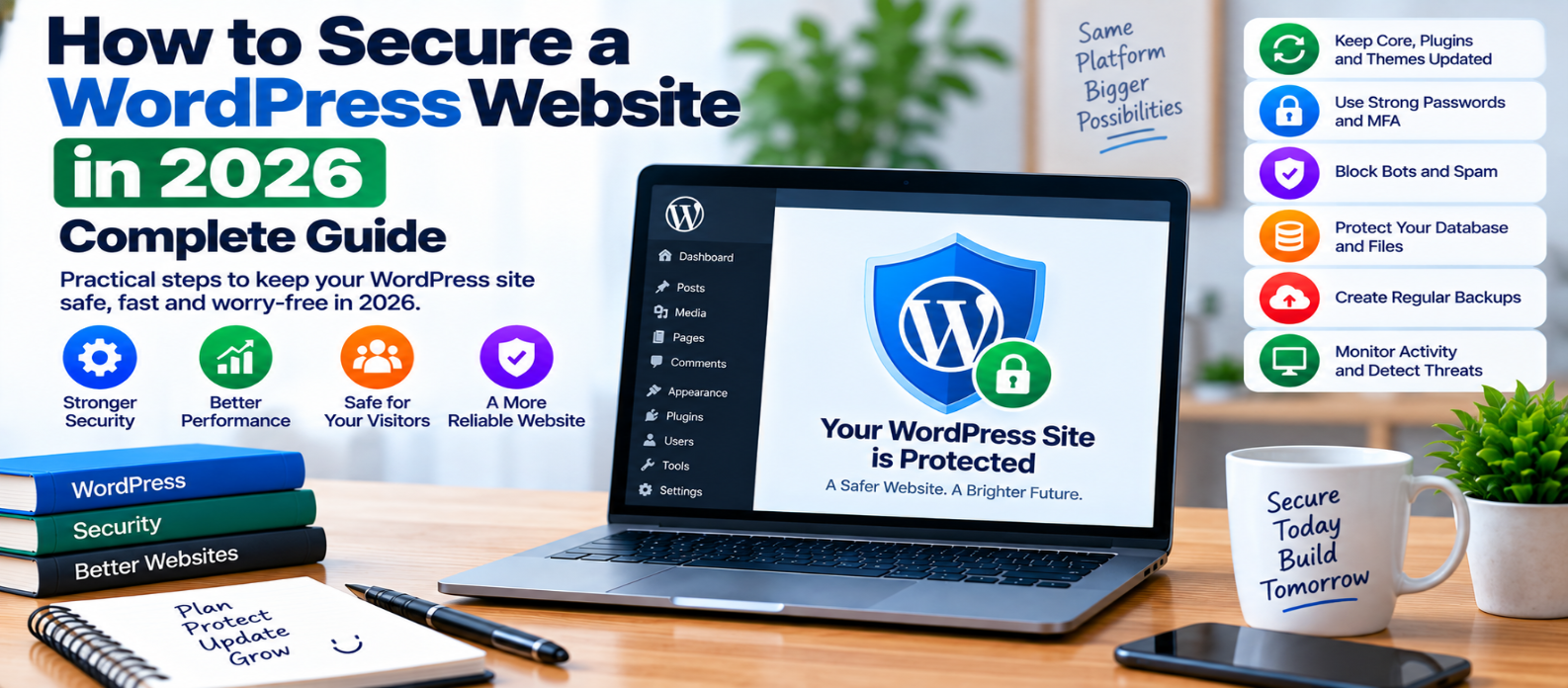
"Learn how to secure a WordPress website in 2026 using safer updates, plugins, administrator accounts, MFA, HTTPS, file permissions, database protection, backups, anti-spam controls, monitoring, and incident recovery."
How to Secure a WordPress Website in 2026
WordPress security isn't about installing one security plugin and assuming the job is finished.
A WordPress website is a combination of the WordPress core, themes, plugins, administrator accounts, hosting environment, database, files, and third-party services. A weakness in any of these areas can create unnecessary risk.
The most effective approach is layered security: reduce the attack surface, protect important accounts, keep software maintained, monitor changes, and prepare for recovery.
1. Keep WordPress Updated
Start with the basics.
Keep the WordPress core on a supported, maintained version and apply relevant security updates promptly.
The same applies to:
- Plugins
- Themes
- PHP and other server software
- Database software
- Hosting components you manage
Before significant updates, maintain a usable backup and test important website functions afterward.
Updates fix known problems, but they should be part of an ongoing maintenance process rather than an occasional emergency task.
2. Remove Plugins and Themes You Don't Need
Every installed component adds code that may require maintenance.
If your website has:
30 installed plugins
        ↓
18 actively required
        ↓
12 unused
review whether those 12 need to remain installed.
Deactivating an unnecessary plugin isn't always the same as removing its code from the server.
Also remove unused themes while retaining anything genuinely required for your active configuration.
Fewer unnecessary components mean a smaller attack surface.
3. Choose Plugins Carefully
Before installing a plugin, ask:
- Do I actually need this functionality?
- Is the plugin actively maintained?
- Is it compatible with my environment?
- Does it request unnecessary access?
- Can existing functionality already solve the problem?
Avoid pirated, "nulled," or suspiciously modified premium themes and plugins. Untrusted packages can contain malicious or altered code.
Don't install several plugins that perform the same security task without understanding how they interact.
4. Protect Administrator Accounts
Your administrator account has extensive control over the website.
Use:
- Strong, unique passwords
- Multi-factor authentication where available
- Individual accounts for each authorized person
- Minimum necessary privileges
- Secure password recovery
Avoid sharing one administrator password among multiple people.
If someone only needs to publish articles, they may not need full administrator access.
5. Review WordPress User Roles
WordPress provides roles with different capabilities.
Conceptually:
Administrator → Site administration
Editor        → Content management
Author        → Own content
Subscriber    → Limited account access
Actual permissions depend on configuration and plugins, so review them carefully.
Remove old employee, contractor, developer, and test accounts when they're no longer required.
Follow the principle of least privilege.
6. Protect the Login Process
WordPress login pages can receive automated password attempts.
Useful defenses may include:
- Rate limiting
- MFA
- Strong passwords
- Monitoring repeated failures
- Carefully targeted bot challenges
- Blocking clearly abusive behavior
Avoid assuming that simply changing the login URL makes the site secure.
Obscurity can reduce some automated noise, but strong authentication remains the real protection.
7. Use HTTPS Everywhere
Your WordPress website should use HTTPS throughout the site.
HTTPS protects information while it travels between visitors and the server.
After enabling it, verify:
HTTP
  ↓
Redirect
  ↓
HTTPS
Also check for mixed content, outdated HTTP resource URLs, and certificate renewal problems.
Remember that HTTPS protects network traffic; it doesn't fix vulnerable plugins or stolen administrator credentials.
8. Secure WordPress Configuration
Your WordPress configuration can contain sensitive information such as database credentials.
Protect configuration files from unnecessary public access and avoid exposing credentials through repositories, backups, logs, or error pages.
Production websites should also avoid displaying detailed debugging information publicly.
Detailed errors may reveal:
- File paths
- Database details
- Plugin information
- Internal application behavior
Keep useful diagnostics in appropriately protected logs instead.
9. Review File Permissions
WordPress files and directories should have permissions appropriate to their purpose and hosting environment.
Avoid unnecessarily broad write access.
The principle is simple:
Needs Read Access?  → Allow what's required
Needs Write Access? → Allow what's required
Needs Neither?      → Don't grant it
Don't copy arbitrary permission values from tutorials without understanding your server configuration.
Incorrect permissions can either expose files or break legitimate functionality.
10. Protect the Database
Your database contains valuable website information.
Security measures include:
- Strong database credentials
- Minimum necessary database privileges
- Restricted database access
- Regular backups
- Protected backup files
- Maintained database software
WordPress plugins and custom code should use WordPress's established database APIs safely rather than building unsafe queries from untrusted input.
Changing a database table prefix alone shouldn't be treated as a primary security defense.
11. Create Reliable Backups
Backups are essential for recovery after:
- Security incidents
- Failed updates
- Accidental deletion
- Database corruption
- Hosting failures
A useful backup strategy covers both:
WordPress Files
      +
Database
      =
Restorable Website
Store important backups separately from the live website where practical.
Most importantly, test restoration.
A backup you cannot successfully restore provides little protection during an emergency.
12. Protect Forms and Comments From Spam
Contact forms, registrations, comments, and password-reset functionality can attract automated abuse.
Depending on the feature, consider:
- Server-side validation
- Rate limiting
- Honeypots
- Spam filtering
- Selective CAPTCHA challenges
- Moderation
Don't make every legitimate visitor solve unnecessary challenges when less intrusive controls work.
13. Use Security Plugins Purposefully
Security plugins can provide useful capabilities such as:
- Login protection
- File-change monitoring
- Security alerts
- Malware scanning
- Firewall functionality
- Activity logging
But adding several overlapping security plugins can create complexity and performance problems.
Choose tools based on the protections your site actually needs.
A security plugin is one layer, not a replacement for secure hosting, updates, backups, and account management.
14. Monitor Unexpected Changes
Security isn't only prevention. Detection matters too.
Watch for:
Unexpected admin accounts
Unknown plugins
Modified files
Unusual login activity
Spam pages
Unexpected redirects
Traffic anomalies
Sudden configuration changes
Investigate unexplained changes rather than simply deleting them and moving on.
They may be symptoms of a larger compromise.
15. Have a WordPress Recovery Plan
Decide what you'll do before something goes wrong.
A basic incident workflow is:
Detect
  ↓
Contain
  ↓
Preserve Useful Evidence
  ↓
Find Root Cause
  ↓
Remove Compromise
  ↓
Restore Safely
  ↓
Rotate Credentials
  ↓
Update and Monitor
Don't simply restore an old backup without identifying how the website was compromised. Otherwise, the same weakness may remain.
WordPress Security Checklist for 2026
Before finishing your security review, verify:
-
WordPress core is maintained
-
Plugins and themes are updated
-
Unused components are removed
-
Administrator passwords are unique
-
MFA protects important accounts
-
User roles follow least privilege
-
Old accounts are removed
-
Login abuse is controlled
-
HTTPS works throughout the website
-
Sensitive configuration is protected
-
File permissions are appropriate
-
Database access is restricted
-
Backups are separate and tested
-
Forms have anti-spam controls
-
Unexpected changes are monitored
-
A recovery plan exists
Conclusion
Securing WordPress isn't about finding a single "best security setting."
Think in layers:
Updates → Accounts → Permissions → HTTPS → Server → Database → Backups → Monitoring → Recovery
Start by removing unnecessary software, maintaining everything you keep, strengthening administrator access, and creating tested backups. Then improve login protection, permissions, monitoring, and incident response according to your site's risk.
No WordPress website can be promised absolute security.
But disciplined maintenance and layered defenses can significantly reduce avoidable risk—and make recovery much easier when something does go wrong.
Get a Free Access To 200+ Free Tools:
|
Home Page |
|
|
Calculator Tools |
|
|
Text & Converter Tools |
|
|
PDF & Image Tools |
|
|
Games & Developer Tools |
|
|
Resume Builder |