
JavaScript APIs Explained: Complete Guide for Beginners in 2026
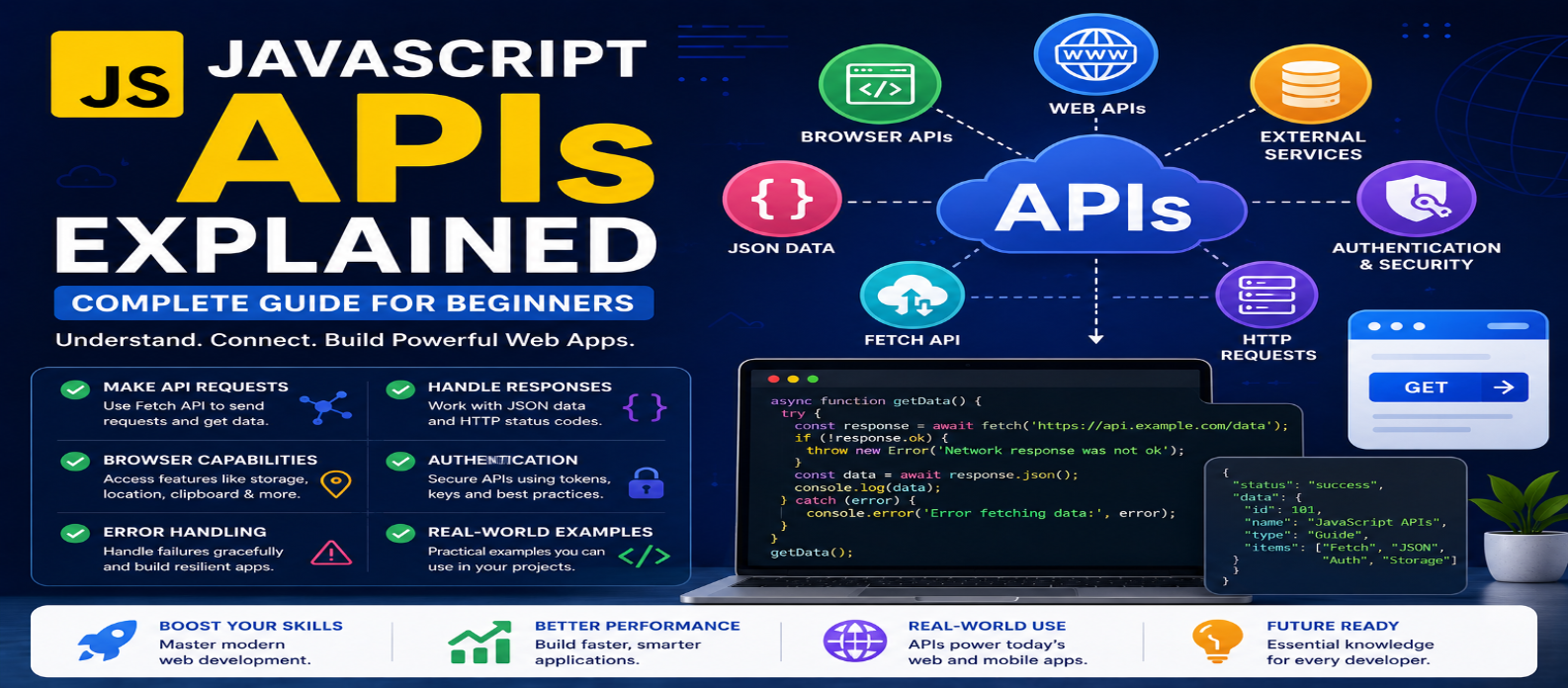
"Learn how JavaScript APIs work with practical examples covering Fetch, JSON, HTTP methods, browser APIs, API keys, CORS, error handling, security, and real-world integrations."
JavaScript APIs Explained: Complete Guide for Beginners in 2026
Modern websites do much more than display text and images. They can retrieve live data, detect a user's location with permission, store information in the browser, copy text to the clipboard, send notifications, communicate with servers, and interact with device capabilities.
Many of these features are possible because of APIs.
If you're learning JavaScript, APIs may initially seem complicated because the term covers several different concepts. Once you understand the basic idea, however, APIs become one of the most practical parts of web development.
This guide explains what JavaScript APIs are, how they work, and how developers use them to build interactive web applications.
What Is an API?
API stands for Application Programming Interface.
An API provides a defined way for one piece of software to interact with another system or capability.
Think of it as:
Your JavaScript → API → Feature or Service → Result
For example, your website might need current weather information.
Instead of collecting weather measurements itself, the application can request data from a service that provides a weather API.
The API acts as the interface between your application and that service.
What Does "JavaScript API" Mean?
When developers talk about JavaScript APIs, they may be referring to different categories.
Browser APIs
Browsers provide interfaces that JavaScript can use to interact with browser features.
Examples include:
- DOM API
- Fetch API
- Web Storage API
- Geolocation API
- Clipboard API
- Canvas API
- History API
Third-Party Web APIs
External services can expose APIs that applications access over a network.
Examples might provide:
Weather → Maps → Payments → Currency Data → AI → Translation → Analytics
These services often communicate using HTTP and return structured data such as JSON.
Understanding the difference between browser APIs and external web APIs helps avoid confusion.
How APIs Work
Imagine you're building a currency converter.
A simplified workflow could be:
1. User selects currencies
↓
2. JavaScript sends a request
↓
3. API receives the request
↓
4. Server processes it
↓
5. API returns data
↓
6. JavaScript displays the result
The browser application doesn't need to know how the provider calculates or stores everything internally.
It only needs to understand the API's defined interface.
Understanding API Requests and Responses
Web APIs commonly communicate through HTTP.
A request may specify:
- Endpoint
- HTTP method
- Headers
- Parameters
- Request body
The server then returns a response.
For example, an imaginary response could look like:
{
  "city": "Bengaluru",
  "temperature": 27,
  "condition": "Cloudy"
}
JavaScript can read this data and display it within the interface.
Using the Fetch API
The browser's Fetch API is commonly used to make network requests.
A basic example:
fetch("https://example.com/api/products")
  .then(response => response.json())
  .then(data => {
    console.log(data);
  })
  .catch(error => {
    console.error(error);
  });
The process is:
Send Request → Receive Response → Parse Data → Use Data
Modern JavaScript frequently expresses the same workflow using async and await.
async function loadProducts() {
  try {
    const response =
      await fetch("https://example.com/api/products");

    const data = await response.json();

    console.log(data);
  } catch (error) {
    console.error("Request failed:", error);
  }
}
For many beginners, this becomes easier to read once asynchronous JavaScript is understood.
Always Check the HTTP Response
A common beginner mistake is assuming fetch() automatically treats every unsuccessful HTTP status as a rejected promise.
A safer pattern is:
async function loadData() {
  const response = await fetch("/api/data");

  if (!response.ok) {
    throw new Error(`HTTP error: ${response.status}`);
  }

  return response.json();
}
This allows your application to handle unsuccessful responses intentionally.
Real applications should plan for failure rather than assuming every API request will succeed.
What Is JSON?
Many web APIs exchange information using JSON, or JavaScript Object Notation.
Example:
{
  "name": "Keyboard",
  "price": 2500,
  "available": true
}
After parsing the response, JavaScript can access values naturally:
console.log(data.name);
console.log(data.price);
JSON can contain:
Strings → Numbers → Booleans → Arrays → Objects → null
It is one of the most important data formats for developers working with web APIs.
Understanding HTTP Methods
APIs often use different HTTP methods depending on the requested action.
GET
Retrieve information.
GET /productsPOST
Submit or create information.
POST /productsPUT or PATCH
Update information.
PATCH /products/42DELETE
Remove information.
DELETE /products/42The exact behavior depends on how a particular API is designed.
Don't assume every API follows identical conventions—read its documentation.
Sending Data to an API
A request can include information in its body.
For example:
const response = await fetch("/api/tasks", {
  method: "POST",
  headers: {
    "Content-Type": "application/json"
  },
  body: JSON.stringify({
    title: "Learn JavaScript APIs"
  })
});
Here JavaScript converts an object into JSON text using:
JSON.stringify()The server can then process the submitted information.
Working With the Geolocation API
Not every JavaScript API communicates with a remote server.
Browsers provide APIs directly.
For example:
navigator.geolocation.getCurrentPosition(
  position => {
    console.log(position.coords.latitude);
    console.log(position.coords.longitude);
  },
  error => {
    console.error(error);
  }
);
Geolocation requires appropriate user permission and browser support.
Websites should request sensitive capabilities only when there is a legitimate user-facing reason.
Clipboard API
JavaScript can interact with the system clipboard in supported, secure contexts.
For example:
await navigator.clipboard.writeText(
  "Copied successfully!"
);
This can power a Copy button for code snippets, generated text, URLs, or other useful content.
A good interface should also tell users whether the operation succeeded or failed.
Web Storage API
Browsers can store limited data locally.
localStorage
localStorage.setItem("theme", "dark");

const theme = localStorage.getItem("theme");
Data stored in localStorage can persist across browser sessions until removed.
sessionStorage
sessionStorage.setItem("step", "2");sessionStorage is scoped differently and generally lasts for the page's browsing session.
Avoid storing passwords, secrets, or other sensitive information in browser storage.
API Keys: A Critical Security Lesson
Many external APIs require an API key.
A major mistake is placing a secret key directly inside frontend JavaScript:
const secretKey = "MY_PRIVATE_API_KEY";Code delivered to the browser can be inspected by users.
If an API credential must remain secret, requests should generally be handled through an appropriate server-side environment where the credential isn't exposed to visitors.
This distinction is essential when building production applications.
Understanding CORS
Sometimes JavaScript attempts to request information from another origin and the browser blocks the request.
Developers often encounter an error involving CORS, or Cross-Origin Resource Sharing.
CORS is a browser security mechanism that allows servers to specify which origins may access their resources.
If a third-party API doesn't permit requests from your website's origin, changing random frontend JavaScript usually isn't the correct solution.
The API server's CORS policy determines whether the browser can make that cross-origin access available to your script.
Rate Limits
Many APIs limit how frequently clients can make requests.
For example, a service may restrict:
Requests per second → Requests per minute → Monthly usage
The exact limits depend on the provider.
Applications should avoid unnecessary requests.
Useful strategies include:
- Caching appropriate results
- Debouncing search inputs
- Avoiding duplicate requests
- Loading data only when needed
- Handling rate-limit responses gracefully
Efficient API usage can improve both performance and reliability.
Connecting API Data to the DOM
Retrieving data isn't useful if users can't see it.
Suppose an API returns:
{
  "name": "CSS Course",
  "price": 499
}
JavaScript could display it:
const product = document.querySelector("#product");

product.textContent =
  `${data.name} - ₹${data.price}`;
This demonstrates an important web-development workflow:
API → JavaScript → DOM → User Interface
Once you understand both APIs and DOM manipulation, you can build much more capable applications.
Common API Mistakes Beginners Make
Exposing Secret Keys
Never assume frontend JavaScript can hide a secret.
Ignoring Errors
Network connections fail. Servers can be unavailable. Data may be invalid.
Handle failure states.
Making Too Many Requests
Don't request identical information repeatedly when it can reasonably be reused.
Trusting API Data Automatically
External data should not automatically be treated as safe or correct.
Validate and safely render information.
Ignoring Loading States
If a request takes two seconds, don't leave the user wondering whether anything is happening.
Show useful states such as:
Loading → Success → Empty → Error
A Beginner-Friendly API Learning Roadmap
Learn in this order:
1. JavaScript Objects
↓
2. JSON
↓
3. Promises
↓
4. async / await
↓
5. Fetch API
↓
6. HTTP Methods
↓
7. Error Handling
↓
8. Authentication
↓
9. Build a Small API Project
Good beginner projects include a:
Weather Dashboard → Currency Converter → Search Tool → Quote App → Public Data Explorer
Choose APIs that are appropriate for browser use and don't expose credentials that need to remain private.
Conclusion
JavaScript APIs allow websites to move beyond static pages and communicate with browser capabilities, servers, external services, and dynamic sources of data.
The essential pattern is:
Request → Response → Process → Display
Start by learning fetch(), JSON, async/await, HTTP methods, and error handling. Then explore browser APIs and authenticated external services.
Most importantly, don't focus only on getting a successful response.
A well-built API integration also considers security, permissions, loading states, errors, rate limits, and the user experience.
Once you understand these principles, APIs become one of the most powerful building blocks available to a JavaScript developer.
Get a Free Access To 200+ Free Tools:
|
Home |
https://webtoolscorner.com/ |
|
Calculators Tools |
https://webtoolscorner.com/category/calculators |
|
Text & Convertor Tools |
https://webtoolscorner.com/category/text-tools |
|
PDF & Image Tools |
https://webtoolscorner.com/category/pdf-tools |
|
Games & Developer Tools |
https://webtoolscorner.com/category/games-and-developer-tools |
|
Resume Builder |
https://webtoolscorner.com/resume |