
Modern Website UI Design Principles: Complete Guide
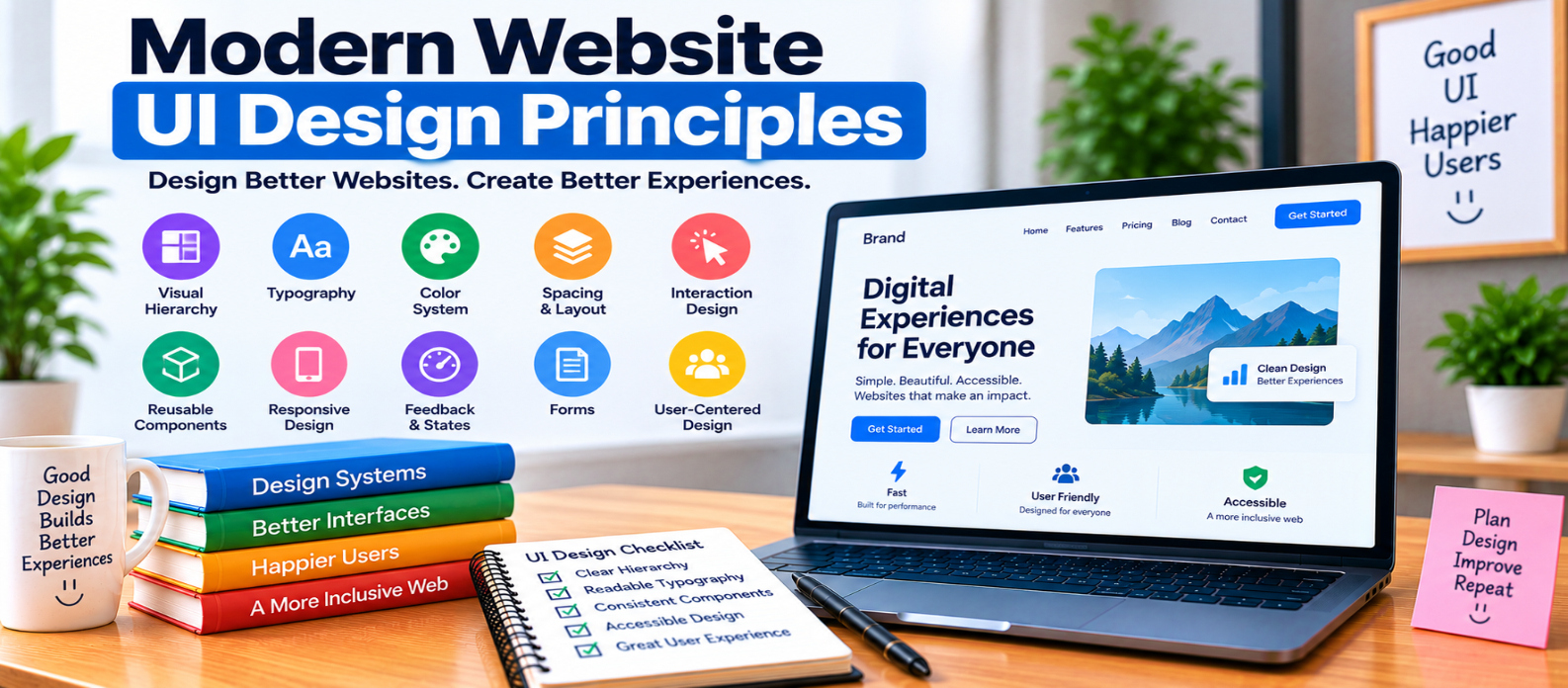
"Learn the essential principles of modern website UI design, including visual hierarchy, spacing, typography, color systems, reusable components, interaction feedback, forms, responsive layouts, purposeful animation, and consistent interface design."
Modern Website UI Design Principles
Modern website UI design is not simply about rounded cards, large typography, gradients, or whichever visual style happens to be popular.
A strong interface helps visitors quickly answer three questions:
Where am I? What can I do here? What should I pay attention to next?
Good UI uses layout, typography, color, spacing, controls, and feedback to make those answers clear.
Here are the principles that matter when designing a modern website interface.
1. Establish a Clear Visual Hierarchy
Not everything on a page should demand equal attention.
Consider a landing page containing:
Headline
Description
Primary Action
Secondary Action
Navigation
Features
Testimonials
Footer
If every element is equally large, bold, and colorful, users have to work harder to determine what matters.
Create hierarchy using:
- Size
- Weight
- Contrast
- Position
- Spacing
- Color
The most important information should be easy to identify without making the rest of the interface visually noisy.
2. Use Spacing as a Design Tool
Whitespace is not wasted space.
It separates unrelated elements and visually connects related ones.
Compare:
Title
[small gap]
Description


[larger gap]


Next Section
The spacing itself communicates structure.
Rather than adding borders around everything, first ask whether thoughtful spacing can create the separation you need.
3. Keep Typography Purposeful
A modern website doesn't need many fonts.
A simple typography system may define:
Display
Heading 1
Heading 2
Heading 3
Body
Small Text
Label
Each style should have a clear purpose.
Prioritize:
- Readability
- Consistent sizing
- Comfortable line height
- Appropriate line length
- Strong heading contrast
Avoid making body text excessively small just to achieve a minimal aesthetic.
4. Build a Controlled Color System
Choose colors as a system rather than individually on every screen.
For example:
Primary
Secondary
Background
Surface
Text
Muted Text
Border
Success
Warning
Error
This makes interfaces easier to maintain and reduces random color choices.
Use bright accent colors selectively. When everything is highlighted, highlighting loses its purpose.
Also maintain sufficient contrast between important text, controls, and their backgrounds.
5. Make the Primary Action Obvious
Many pages have one action that matters more than the others.
For a software landing page, that might be:
Start Free
For an online store:
Add to Cart
For a utility website:
Upload Image
Supporting actions can remain available without visually competing with the primary one.
For example:
[ Start Free ] View DemoThe interface should communicate priority without forcing the user.
6. Design Components, Not Isolated Screens
Instead of designing every button or card independently, create reusable components.
A button system might include:
Primary Button
Secondary Button
Text Button
Icon Button
Then define states:
Default
Hover
Focus
Pressed
Loading
Disabled
The same approach works for:
- Forms
- Cards
- Alerts
- Navigation
- Modals
- Tables
- Tabs
Reusable components make a website more visually consistent and easier to maintain.
7. Keep Interaction Patterns Consistent
If one blue underlined phrase is a link, visitors may reasonably expect similar elements to behave the same way.
Consistency applies to:
- Buttons
- Links
- Icons
- Navigation
- Forms
- Menus
- Dialogs
Don't make users repeatedly discover how your interface works.
Familiar behavior reduces unnecessary learning.
8. Give Immediate Feedback
When users interact with an interface, something should communicate what happened.
Imagine clicking Save and seeing nothing.
Did it work?
Did the request fail?
Is it still processing?
Useful states might include:
Save
 ↓
Saving...
 ↓
Saved
For an error:
Upload
 ↓
Uploading...
 ↓
Upload failed
 ↓
Try again
Good feedback removes uncertainty.
9. Design Forms for Completion
Forms should help users finish a task rather than test their patience.
Use:
- Clear labels
- Logical field order
- Appropriate input types
- Helpful instructions
- Specific validation messages
- Visible focus states
Instead of:
Invalid passwordexplain the requirement:
Password must contain at least 8 characters.Ask only for information you genuinely need.
10. Make Responsive Design Part of the UI
Don't design the desktop interface first and treat mobile as a smaller copy.
Consider how the hierarchy changes.
A desktop header might be:
Logo | Products | Tools | Blog | Pricing | Sign InOn a narrow screen, that navigation may need a different interaction pattern.
Test:
- Navigation
- Buttons
- Cards
- Forms
- Tables
- Dialogs
- Images
- Long headings
Responsive UI should preserve usability, not merely prevent horizontal overflow.
11. Use Icons to Support Meaning
Icons can reduce visual clutter, but they shouldn't create puzzles.
Some symbols are familiar in certain contexts:
🔍 Search
⚙ Settings
Others may require labels.
If understanding the icon is important to completing a task, clarity is more important than visual minimalism.
12. Use Animation With a Purpose
Motion can help explain:
- State changes
- Opening menus
- Progress
- Relationships between elements
- Successful actions
But animation shouldn't delay basic tasks or distract from content.
Ask:
What does this movement communicate?
If the answer is nothing, you may not need it.
Also account for people who prefer reduced motion.
13. Design Useful Empty, Loading and Error States
Interfaces aren't always full of perfect data.
Design for situations such as:
No Results
No Notifications
Loading
Connection Failure
Empty Dashboard
Permission Error
Instead of displaying a blank screen, explain what is happening and what the user can do next.
An empty search result, for example, might suggest changing the query or removing filters.
14. Don't Sacrifice Usability for Trends
Visual trends change quickly.
You may encounter:
- Glass effects
- Oversized typography
- Extreme minimalism
- Complex gradients
- 3D elements
- Experimental navigation
- Heavy animation
Any of these can work in the right context.
The question isn't:
“Does this look trendy?”
Ask:
“Does this help people understand and use the website?”
Trends should serve the interface rather than control it.
Modern UI Design Checklist
Before approving an interface, check:
-
Visual hierarchy is obvious
-
Spacing communicates structure
-
Typography is readable and consistent
-
Colors have defined purposes
-
Primary actions are easy to identify
-
Components are reusable
-
Interaction patterns remain consistent
-
Actions provide feedback
-
Forms are easy to complete
-
Mobile layouts are intentionally designed
-
Icons are understandable
-
Motion serves a purpose
-
Empty and error states are designed
-
Accessibility is considered throughout
Conclusion
Modern UI design works best when every visual decision has a reason.
Think of the interface as a system:
Hierarchy
    ↓
Typography & Color
    ↓
Spacing & Layout
    ↓
Components
    ↓
Interactions
    ↓
Feedback
    ↓
Responsive Behavior
    ↓
Continuous Refinement
A website doesn't become modern simply by adopting the latest visual trend.
A modern interface feels clear because users can understand what matters, recognize what they can do, and see what happens after they act.
Design for that clarity first. The visual style can evolve around it.
Get a Free Access To 200+ Free Tools:
|
Home Page |
|
|
Calculator Tools |
|
|
Text & Converter Tools |
|
|
PDF & Image Tools |
|
|
Games & Developer Tools |
|
|
Resume Builder |