
WCAG Explained: Complete Web Accessibility Guide for Beginners
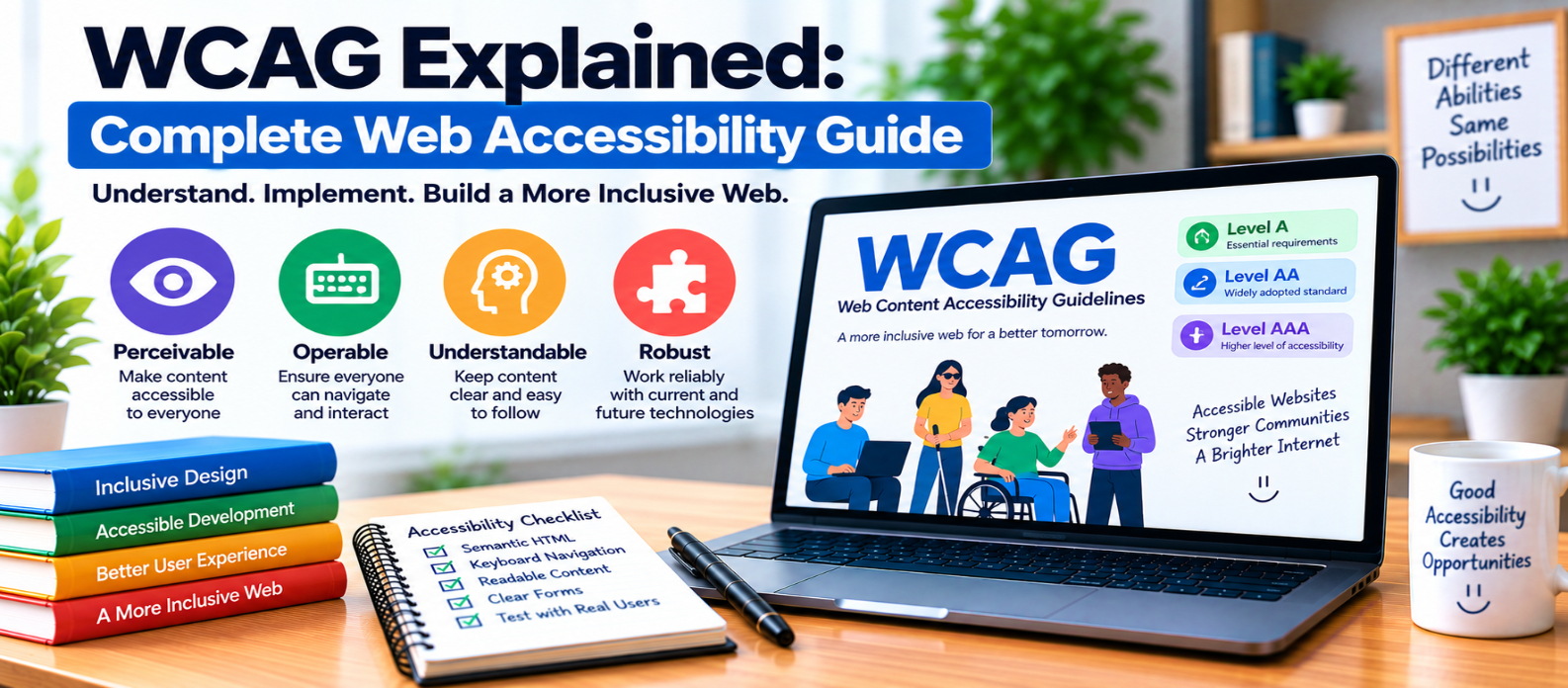
"Learn what WCAG means, how the POUR accessibility principles work, the differences between Level A, AA and AAA, how success criteria are structured, and practical ways to test and improve website accessibility."
WCAG Explained: Complete Web Accessibility Guide
If you're learning web accessibility, you'll quickly encounter four letters: WCAG.
WCAG stands for Web Content Accessibility Guidelines. It provides a structured framework for making websites and digital content more accessible to people with disabilities.
But WCAG can look intimidating when you first encounter terms such as success criteria, conformance levels, perceivable, and robust.
The concepts become much easier when you understand how the guidelines are organized.
What Is WCAG?
WCAG describes accessibility requirements for web content.
It addresses barriers that can affect people with different visual, auditory, physical, speech, cognitive, language, learning, and neurological needs.
Rather than treating accessibility as one feature, WCAG covers many aspects of a website, including:
- Text
- Images
- Forms
- Navigation
- Keyboard interaction
- Audio and video
- Color and contrast
- Focus behavior
- Page structure
- Dynamic interfaces
WCAG is organized around four fundamental principles.
The Four WCAG Principles: POUR
The easiest way to understand WCAG is through POUR:
P — Perceivable
O — Operable
U — Understandable
R — Robust
Let's translate those principles into practical web development.
1. Perceivable
People need to be able to perceive the information your website presents.
If important information exists only inside an image, someone who cannot see that image needs another way to access its meaning.
For example:
<img
  src="sales-chart.png"
  alt="Monthly sales increased from January through June"
>
Other perceivable-content considerations include:
- Text alternatives for meaningful images
- Captions for relevant video
- Appropriate color contrast
- Content that remains usable when resized
- Information that doesn't rely entirely on color
Think:
Can users access this information through a method available to them?
2. Operable
Users must be able to operate the interface.
A common example is keyboard navigation.
Try putting your mouse aside and pressing Tab.
Can you reach:
Navigation
    ↓
Links
    ↓
Buttons
    ↓
Form fields
    ↓
Dialogs
Interactive controls should be usable without requiring a mouse where keyboard interaction is expected.
Visible focus is also important.
A keyboard user needs to know which element is currently active.
Operability also covers areas such as timing, navigation, motion, and content that could trigger physical reactions.
3. Understandable
A website shouldn't make basic interactions unnecessarily confusing.
Forms are a good example.
Instead of:
Error 104tell the user what happened:
Enter a valid email address, such as
name@example.com.
Understandability includes areas such as:
- Readable content
- Predictable navigation
- Clear labels
- Helpful instructions
- Error identification
- Assistance when correcting mistakes
Consistency also helps.
If navigation behaves completely differently on every page, visitors may struggle to understand how the site works.
4. Robust
Web content should work reliably with different browsers, devices, and assistive technologies.
Using semantic HTML is an important foundation.
For example:
<button type="button">Download Report</button>already communicates that the element is a button.
Creating the same control from a generic element can require additional work to reproduce expected semantics and keyboard behavior.
Prefer native HTML where it appropriately solves the problem.
Understanding WCAG Success Criteria
Each principle contains more detailed guidelines, which in turn contain testable success criteria.
You can think of the structure like this:
Principles
    ↓
Guidelines
    ↓
Success Criteria
    ↓
Techniques and Testing
Success criteria make accessibility requirements more concrete.
Instead of simply saying:
Make the website accessible.
WCAG provides specific criteria that can be evaluated.
This gives designers, developers, testers, and organizations a shared framework for discussing accessibility.
WCAG Conformance Levels: A, AA and AAA
WCAG success criteria are assigned one of three levels:
Level A
Level A includes foundational accessibility requirements.
Failure to address these can create significant barriers.
Level AA
Level AA adds additional requirements and is a commonly referenced accessibility target.
It addresses important areas such as contrast and various interaction requirements.
Level AAA
Level AAA contains additional and often more demanding criteria.
It isn't appropriate to assume every page or type of content can satisfy every Level AAA criterion.
The levels are cumulative:
Level A
   ↓
Level AA
   ↓
Level AAA
Meeting a higher conformance level requires satisfying the applicable requirements of the lower levels as well.
What Version of WCAG Should You Know?
Accessibility standards evolve as technologies and user needs evolve.
For modern projects, developers should understand the current WCAG 2.x framework and pay attention to the requirements relevant to their project's accessibility target.
Don't assume an old accessibility checklist covers every newer consideration.
At the same time, many fundamentals remain familiar:
- Semantic HTML
- Keyboard accessibility
- Text alternatives
- Clear labels
- Sufficient contrast
- Predictable interaction
Good foundations continue to matter.
Practical WCAG Example: A Signup Form
Imagine this form:
<input type="text" placeholder="Email">
<div>Go</div>
Several questions immediately arise:
- Does the input have a persistent label?
- Is the action keyboard accessible?
- Is the control properly identified?
- What happens when the email is invalid?
- Is focus visible?
- Is the error understandable?
A stronger foundation could begin with:
<label for="email">Email address</label>
<input id="email" name="email" type="email">

<button type="submit">Sign up</button>
Accessibility isn't only about passing an automated test. It is about whether someone can successfully complete the task.
WCAG and Automated Accessibility Testing
Automated tools can identify certain problems efficiently.
They may detect issues such as:
- Missing attributes
- Some contrast failures
- Certain structural problems
- Invalid accessibility relationships
But automation cannot reliably determine everything.
A tool might confirm that an image has alt text, for example, without determining whether that text actually communicates the image's purpose well.
Combine automated checks with manual testing.
A Simple WCAG Testing Workflow
For a typical page, try:
Automated Scan
      ↓
Keyboard Test
      ↓
Zoom & Responsive Test
      ↓
Screen Reader Review
      ↓
Forms & Error Testing
      ↓
Fix and Retest
Accessibility testing works best as part of development rather than something performed only before launch.
Beginner WCAG Checklist
Start with these questions:
-
Do meaningful images have appropriate text alternatives?
-
Can important functions be operated by keyboard?
-
Is keyboard focus visible?
-
Is text readable against its background?
-
Is information understandable without relying only on color?
-
Are headings logically structured?
-
Do form fields have clear labels?
-
Are validation errors understandable?
-
Are links descriptive?
-
Do videos have appropriate accessibility support?
-
Does content remain usable when enlarged?
-
Are native HTML controls used where appropriate?
-
Have automated and manual tests both been performed?
Conclusion
WCAG becomes much easier to understand when you stop viewing it as one enormous checklist.
Start with four questions:
Can people perceive it?
        ↓
Can they operate it?
        ↓
Can they understand it?
        ↓
Can assistive technologies interpret it reliably?
Those questions correspond to Perceivable, Operable, Understandable, and Robust.
WCAG then turns those broad principles into guidelines and measurable success criteria.
The objective isn't simply to achieve a label or pass a scanner. It is to identify barriers that prevent people from successfully using your website—and remove them systematically.
Get a Free Access To 200+ Free Tools:
|
Home Page |
|
|
Calculator Tools |
|
|
Text & Converter Tools |
|
|
PDF & Image Tools |
|
|
Games & Developer Tools |
|
|
Resume Builder |