
Web Accessibility in 2026: Complete Beginner's Guide
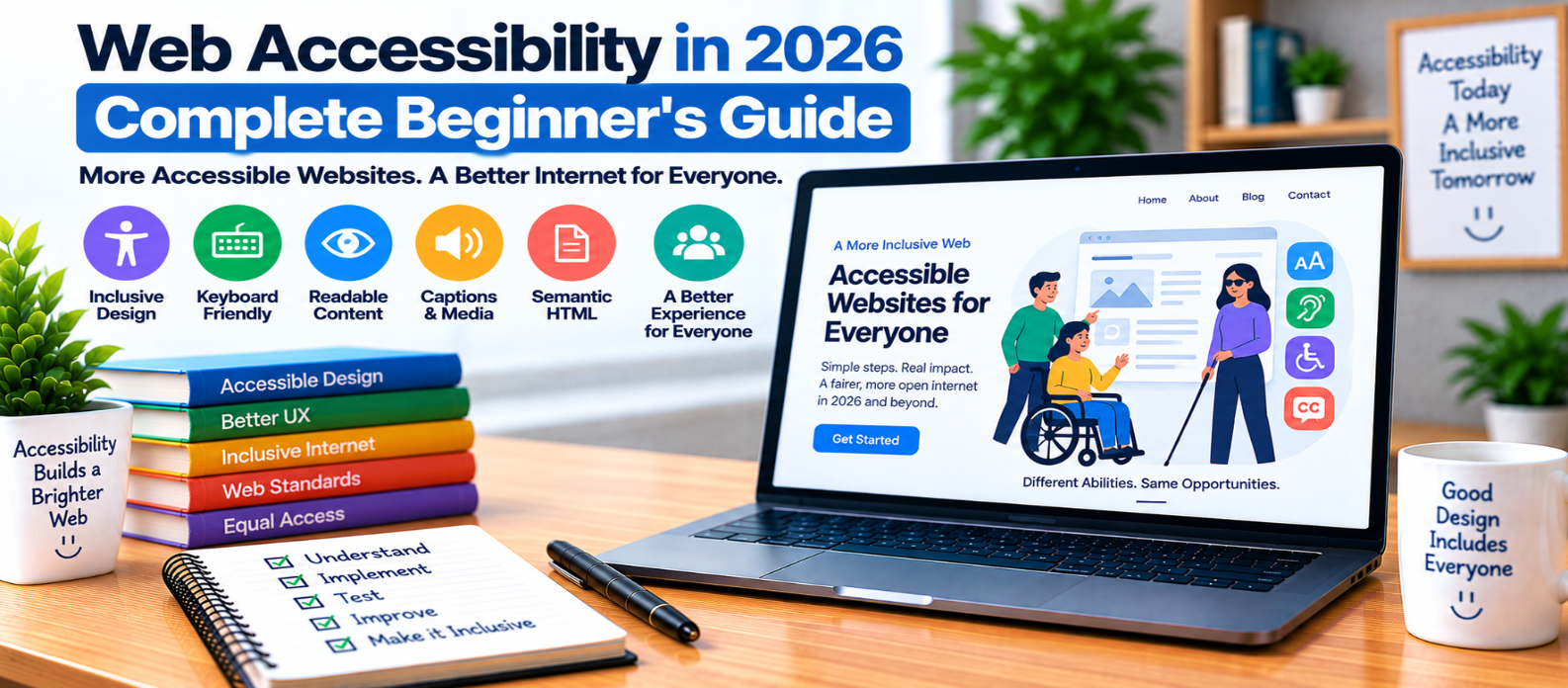
"Learn the fundamentals of web accessibility in 2026, including semantic HTML, alt text, keyboard navigation, color contrast, accessible forms, headings, captions, responsive text, reduced motion, and practical accessibility testing."
Web Accessibility in 2026: Complete Beginner's Guide
A website can look perfect and still be difficult—or impossible—for some people to use.
Someone may navigate without a mouse, listen to content through a screen reader, enlarge text substantially, use voice controls, have difficulty distinguishing certain colors, or need captions instead of audio.
Web accessibility means designing and developing websites so people with different abilities can perceive, understand, navigate, and interact with them.
For beginners, accessibility doesn't need to start with complicated testing. Many improvements come from getting basic HTML and design decisions right.
Why Web Accessibility Matters
Accessibility expands who can successfully use your website.
It can also improve everyday usability.
Clear headings make articles easier to scan. Keyboard-friendly controls help people who can't use a mouse. Captions help when audio can't be heard. Descriptive labels make forms easier to understand.
Think of accessibility as part of building a functional website—not as an optional feature added after development.
Understand the Four Accessibility Principles
WCAG organizes accessibility around four broad principles often remembered as POUR:
Perceivable
Operable
Understandable
Robust
In practical terms, users need to be able to access the information, operate the interface, understand what is happening, and use the site with different browsers and assistive technologies.
You don't need to memorize every guideline before improving your website.
Start with common barriers.
1. Use Semantic HTML
HTML elements communicate meaning, not just appearance.
Instead of making every interactive element a generic container, use appropriate elements.
For example:
<button type="button">Save Changes</button>is generally more meaningful than:
<div>Save Changes</div>Native HTML controls often provide useful keyboard and accessibility behavior automatically.
Use elements such as:
<header>
<nav>
<main>
<article>
<button>
<label>
<footer>
according to their intended purpose.
2. Add Useful Alternative Text to Images
Images that communicate information need an appropriate text alternative.
For example:
<img
  src="traffic-chart.png"
  alt="Organic search traffic increasing from January to June"
>
Avoid descriptions such as:
image
picture
graphic
because they don't explain the useful information.
Decorative images that add no meaningful information may use an empty alternative:
alt=""The goal isn't to describe every pixel. Communicate the image's purpose in context.
3. Make Everything Usable With a Keyboard
Try navigating your website without touching the mouse.
Use:
Tab
Shift + Tab
Enter
Space
Arrow keys where appropriate
Can you reach menus, links, forms, dialogs, and interactive tools?
Can you tell which element currently has focus?
Avoid removing visible focus indicators simply because they don't match a design aesthetic.
A user navigating by keyboard needs to know where they are.
4. Maintain Readable Color Contrast
Light-gray text on a white background may look minimal, but it can be difficult to read.
Contrast matters for:
- Body text
- Buttons
- Form labels
- Navigation
- Icons
- Status messages
Also avoid communicating important information through color alone.
Instead of showing only:
Red = Error
Green = Success
combine color with text or another visual cue:
✕ Payment failed
✓ Payment successful
Now the meaning doesn't depend entirely on distinguishing the colors.
5. Structure Headings Logically
Headings help organize content visually and structurally.
A simple article might follow:
H1: Web Accessibility Guide
   H2: Keyboard Accessibility
      H3: Focus Indicators
   H2: Accessible Forms
   H2: Image Accessibility
Don't choose heading levels solely because of their default font size.
Use CSS for appearance and HTML headings for document structure.
6. Create Accessible Forms
Every form field should have a clear purpose.
For example:
<label for="email">Email address</label>
<input
  id="email"
  name="email"
  type="email"
>
Placeholders shouldn't be the only way users know what a field requires.
When validation fails, provide a useful explanation:
Unhelpful:Invalid input
Better:Enter an email address in the format name@example.com.
Make errors easy to identify and correct.
7. Use Descriptive Link Text
Imagine a screen reader user encounters several links called:
Click here
Click here
Read more
Learn more
Without surrounding context, those labels provide little information.
Prefer descriptive text such as:
Read the JavaScript Fetch API guide
View the image compression tool
Learn about keyboard accessibility
Users should have a reasonable idea where a link will take them.
8. Provide Captions and Text Alternatives for Media
Video and audio can create barriers when important information is available through only one format.
Depending on the content, useful accessibility features can include:
- Captions
- Transcripts
- Audio descriptions
- Accessible media controls
Accurate captions are particularly important when spoken information is necessary to understand the content.
Automatically generated captions can be a starting point, but important errors should be reviewed and corrected.
9. Allow Users to Zoom and Resize Text
Don't assume everyone reads your website at its default size.
Test what happens when users:
- Zoom the browser
- Increase text size
- Use a narrow viewport
- Rotate a mobile device
Content shouldn't become unreadable simply because text is enlarged.
Responsive design and accessibility often support each other here.
10. Be Careful With Motion
Animations can make interfaces engaging, but unnecessary movement can also make websites harder to use.
Avoid excessive:
- Auto-playing animation
- Flashing content
- Parallax effects
- Moving backgrounds
- Unnecessary transitions
Where significant motion exists, respect user preferences such as reduced motion when practical.
11. Test Beyond Automated Scores
Accessibility scanners are useful, but they cannot understand every user experience.
Combine automated checks with manual testing.
Try:
Keyboard navigation
        +
Zoomed layout
        +
Screen reader testing
        +
Form interaction
        +
Automated accessibility checks
For important websites, testing with people who use assistive technologies can reveal barriers automated tools miss.
Beginner Accessibility Checklist
Start here:
-
Use semantic HTML
-
Add appropriate image alternatives
-
Make controls keyboard accessible
-
Keep keyboard focus visible
-
Maintain readable contrast
-
Don't rely only on color
-
Organize headings logically
-
Label form fields
-
Write understandable error messages
-
Use descriptive links
-
Caption important video content
-
Support zoom and responsive layouts
-
Avoid unnecessary motion
-
Test manually as well as automatically
Conclusion
Web accessibility isn't a single plugin, score, or checkbox.
It is a way of asking:
Can different people successfully use what we've built?
Start with the fundamentals:
Meaningful HTML
      ↓
Keyboard Access
      ↓
Readable Content
      ↓
Accessible Forms & Media
      ↓
Manual Testing
      ↓
Continuous Improvement
You don't need to solve every accessibility challenge on your first day.
Build good foundations, test real interactions, fix barriers when you find them, and make accessibility part of your normal design and development process.
A more accessible website is ultimately a website that more people can use.
Get a Free Access To 200+ Free Tools:
|
Home Page |
|
|
Calculator Tools |
|
|
Text & Converter Tools |
|
|
PDF & Image Tools |
|
|
Games & Developer Tools |
|
|
Resume Builder |