
Website Homepage Design: Complete Guide to Building a Better Homepage
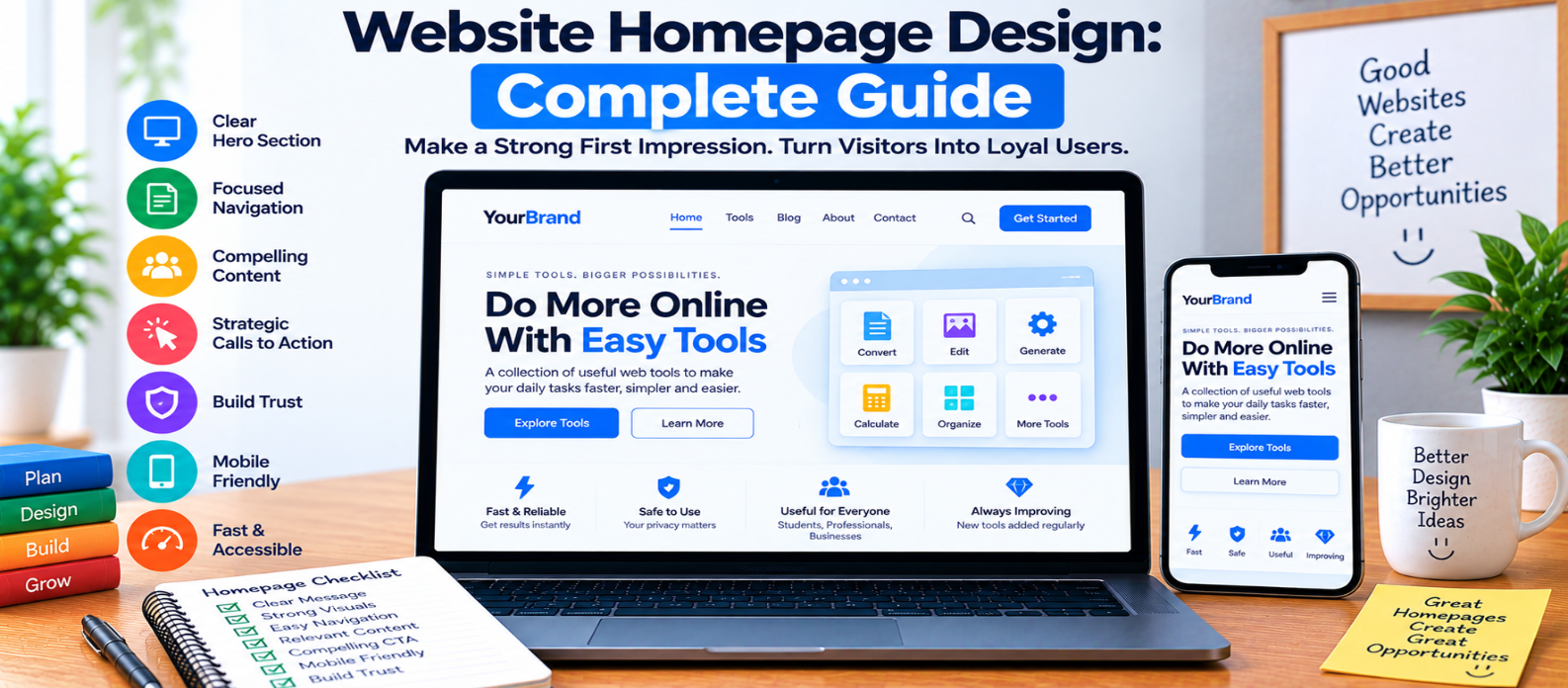
"Learn how to design an effective website homepage with a clear hero section, strong value proposition, focused navigation, visual hierarchy, useful CTAs, genuine trust signals, mobile-friendly layouts, fast performance, and accessible design."
Website Homepage Design: Complete Guide
Your homepage is often one of the first places visitors use to understand your website.
Within a short time, they may be trying to answer several questions:
What is this website? Is it relevant to me? What can I do here? Where should I go next?
A strong homepage answers those questions without overwhelming people with every feature, article, product, and announcement at once.
Good homepage design is less about filling space and more about creating a clear path through your website.
1. Define the Homepage's Main Purpose
Before designing sections, determine what the homepage needs to accomplish.
Depending on the website, that could be:
- Introducing a business
- Helping visitors discover tools
- Presenting products
- Generating signups
- Directing readers to content
- Encouraging inquiries
A homepage can support several tasks, but it should still have clear priorities.
Think:
Visitor Arrives
      ↓
Understands the Website
      ↓
Finds Relevant Information
      ↓
Chooses a Path
      ↓
Takes Action
Design around that journey.
2. Make the Hero Section Immediately Understandable
The top section shouldn't require visitors to decode a clever slogan.
A practical hero usually contains:
Clear Headline
      ↓
Short Supporting Message
      ↓
Primary Action
      ↓
Relevant Visual
For example, a website offering online web utilities might use:
Simple Online Tools for Everyday Web Tasks
Followed by a short explanation of what visitors can accomplish.
Specific language usually communicates more effectively than vague claims such as:
Building Tomorrow's Digital Future.
3. Create a Clear Value Proposition
Explain why someone should continue using your website.
A useful value proposition answers:
- What do you offer?
- Who is it useful for?
- What problem does it solve?
- What makes the experience useful?
Keep it concise.
The homepage should introduce the value. Detailed explanations can live on dedicated pages.
4. Keep Navigation Focused
The homepage header should provide obvious routes to important areas.
For example:
Logo | Tools | Blog | Resources | About | SearchAvoid placing dozens of unrelated links in the primary navigation.
For larger websites, use categories, dropdowns, search, or dedicated directory pages to organize additional destinations.
Navigation should help visitors explore rather than expose the entire website structure at once.
5. Establish Visual Hierarchy
Visitors often scan a homepage before reading closely.
Use:
- Headline size
- Typography
- Spacing
- Contrast
- Section grouping
- Images
- Buttons
to communicate importance.
If every section uses huge text, bright backgrounds, animations, and multiple buttons, nothing feels important.
Visual hierarchy should guide attention naturally.
6. Show Important Content Early
After introducing the website, help visitors discover its core value.
For a tools website, this could be:
Popular Tools
     ↓
Tool Categories
     ↓
Recently Added Tools
For a software product:
Core Benefits
     ↓
Product Preview
     ↓
How It Works
For a content website:
Featured Content
     ↓
Main Categories
     ↓
Latest Articles
Prioritize what visitors are most likely to need.
7. Use Calls to Action Strategically
A homepage may contain several links, but primary actions should remain recognizable.
Examples include:
- Explore Tools
- Start Free
- Browse Products
- View Services
- Contact Us
Avoid turning every link into a large primary button.
A simple hierarchy might be:
[ Explore Tools ] Learn MoreThe stronger treatment communicates which action deserves more attention.
8. Use Visuals That Support the Message
Homepage visuals should help explain the website.
Useful options may include:
- Product screenshots
- Interface previews
- Relevant illustrations
- Product photography
- Demonstrations
- Examples of output
Avoid adding generic images merely because an empty area feels unfinished.
A visual should support the content around it.
9. Build Trust With Accurate Information
Visitors may want reassurance before creating an account, purchasing something, or sharing information.
Depending on the website, genuine trust signals might include:
- Real testimonials
- Transparent pricing
- Clear contact information
- Security information
- Refund policies
- Accurate customer numbers
- Real product screenshots
Never invent ratings, testimonials, customer counts, partnerships, or awards to make a homepage appear more established.
10. Keep Sections Focused
A homepage doesn't need to explain everything.
Each section should have a clear purpose.
For example:
Hero              → Explain
Features          → Show value
How It Works      → Reduce uncertainty
Testimonials      → Provide evidence
FAQ               → Answer concerns
CTA               → Encourage next step
If a section doesn't help visitors understand, navigate, trust, or act, consider whether it needs to be there.
11. Design the Mobile Homepage Intentionally
Don't simply shrink the desktop design.
On smaller screens, consider:
- Headline length
- Navigation
- CTA placement
- Image dimensions
- Card stacking
- Section spacing
- Touch targets
Important information shouldn't require excessive scrolling before visitors understand what the website offers.
Mobile design may require changing the order or presentation of some content.
12. Keep the Homepage Fast
Homepages often become heavy because teams keep adding features.
Watch for:
- Oversized hero images
- Background videos
- Multiple font files
- Third-party scripts
- Carousels
- Heavy animations
- Unnecessary widgets
Optimize assets and prioritize resources needed for the initial experience.
Don't make visitors download a large amount of content before they can use the page.
13. Make the Homepage Accessible
Check whether visitors can:
- Navigate by keyboard
- See keyboard focus
- Read text comfortably
- Understand links
- Use buttons
- Enlarge content
- Interpret meaningful images
- Navigate with assistive technology
Use proper heading structure and semantic HTML.
Accessibility should be part of the homepage design rather than a final patch.
14. Avoid Common Homepage Mistakes
Watch for:
- Vague headlines
- Too many CTAs
- Overloaded navigation
- Huge introductions
- Auto-playing media
- Unnecessary popups
- Invented social proof
- Poor mobile layouts
- Tiny text
- Excessive animation
- Slow-loading visuals
- Important content buried too far down
More content does not automatically create a better homepage.
Homepage Design Checklist
Before publishing, check:
-
Website purpose is immediately understandable
-
Hero section has a clear message
-
Value proposition is specific
-
Navigation is easy to understand
-
Visual hierarchy is clear
-
Important content appears prominently
-
Primary CTA is recognizable
-
Visuals support the content
-
Trust signals are genuine
-
Sections have clear purposes
-
Mobile layout is intentionally designed
-
Images and resources are optimized
-
Accessibility has been tested
-
Unnecessary distractions are removed
Conclusion
A useful homepage creates a path rather than a wall of information:
Understand
    ↓
Explore
    ↓
Build Trust
    ↓
Choose
    ↓
Take Action
Start by clearly explaining what the website offers. Then help visitors discover important content, understand its value, and move toward the page or action that matches their needs.
A successful homepage doesn't need to say everything about your website. It needs to help visitors understand enough to know where they should go next.
Get a Free Access To 200+ Free Tools:
|
Home Page |
|
|
Calculator Tools |
|
|
Text & Converter Tools |
|
|
PDF & Image Tools |
|
|
Games & Developer Tools |
|
|
Resume Builder |